Estimate to Complete
Estimate to complete (ETC) values are meant to provide an current estimate of what it will take to complete the remaining work for a project. At the beginning of a project, the time phased budget and ETC values are equal. The budget at completion (BAC) and estimated at completion (EAC) are also equal. Once work begins on the project, the actual costs replace the ETC values for the current reporting period. As a result, the EAC is updated every reporting period assuming you use the default calculation of EAC equals the cumulative to date actual costs plus the ETC. Comparing the BAC to the EAC provides an indication whether the work will be completed under or over budget. Comparing the baseline end dates to the forecast end dates provides an indication whether individual work elements or the project will complete earlier or later than planned.
A common best practice is to continually maintain the ETC values every reporting period where you are updating the data as needed for in progress work packages or near term work packages that are about to begin work. To establish the initial ETC values, you can generate them using the budget baseline work package dates and time phased budget data and then manually maintain the ETC data. Otherwise, you can import the current schedule data from your schedule tool provided you created your budget data using the baseline schedule or import the data from another system. Be sure to set the applicable project level forecast options to reflect how to you want to create and maintain the ETC data. See Set Forecast Options
 Implementation Tips
- When you intend to manually maintain the ETC, the easiest way to create the values for a new project is to use the Generate Forecast Ribbon Menu option in the main EVMax window.
- The work package forecast start and end dates (Work Package EVT Status tab) determine the time frame for the estimate to complete values (see View the Forecast Spread). Once an actual start date is set for a work package and the forecast start is in the past, the forecast start date is automatically updated to reflect the start of the next reporting period.
- During the execution phase of a project, it is common that the labor or overhead rates for the ETC need to be updated on a regular basis. You can create a separate rate class for the ETC values so the current forward pricing rates are used for calculating the direct and indirect costs. See Rate Classes.
- When you are tracking changes to the budget baseline, be sure to Enable the Change Control Log before you start making any changes to work package forecast dates. When the change control log is enabled, the budget spread calendar month columns retain the work package baseline start and end dates in instances where the forecast end date extends past the baseline end date (there are additional future calendar month columns in the Forecast spread).
What do you want to do?
- Set Forecast Options. You must be an administrative user to set these project level options.
- Generate Forecast. You must be an administrative user to generate the forecast data.
- If you used schedule data to create the budget data, you can also Import Schedule Forecast Data to maintain the ETC using the current schedule data. You must be an administrative user to import the data.
- If you want to import the ETC data from another system, you can Create an Import Template for the ETC values and Import Data Using a Template. You must be an administrative user to import the data.
- Update Forecast Values once you have generated them.
- View the Forecast Spread
- Remove Forecast data should you need recreate the ETC values. You must be an administrative user to remove the forecast data.
Main EVMax Tab, Resources Tab, Forecast Tab
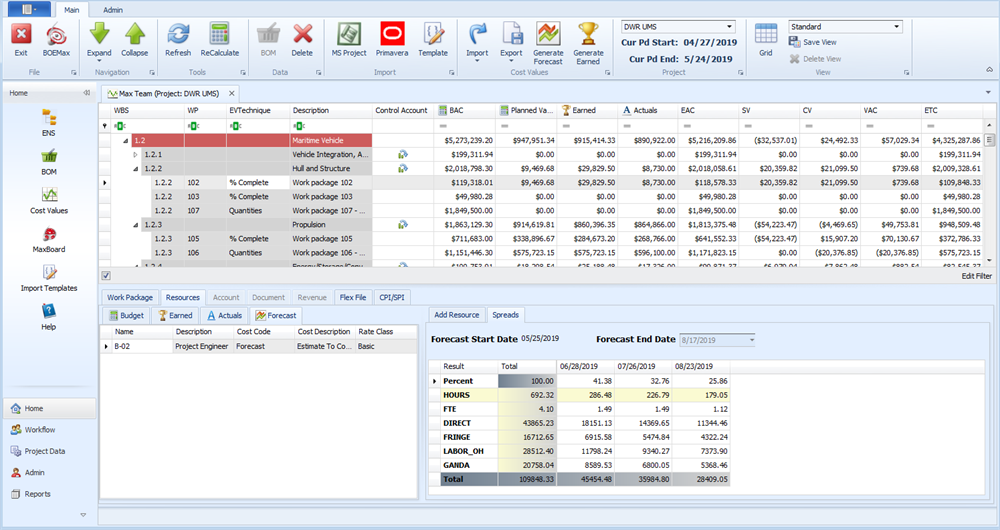
To customize your view, see Window Configuration. You may want to set which project level cost report group or results are included in the total ETC or EAC value columns.